
Attendee FAQs and Troubleshooting Playbook
A complete guidebook for attendees

Tharinda Lasika
Last Update 5 months ago
Unable to Log in?
A: Make sure you have registered for the webinar and received the link to your email inbox.
A: View the event date/time and make sure the time is within the start time. Sometimes you will be allowed 60 minutes, 30 minutes, or 15 minutes before the start, so be patient.
A: If you can see the login page and if it asks for a code, check your email. The link you were sent also includes the passcode at the end of the link.
- Reload a couple of times, and if it does not work, try a different browser. If it does not work,
- Run the following test (click here). If you see errors, do the following
- Try turning off any VPN connections or Firewall to get this resolved. If it does not work, please contact us.
A: A host has banned you from the webinar room. Please contact the host.

This is completely normal. You are in the Lobby, and the webinar will start soon. If you know it is past the start time, ask in chat to see if the event has started. If it is started, follow the troubleshooting steps below.
Make sure your presenter is speaking. Some presenters do not speak all the time. Ask other attendees first. Check if your computer's audio (speakers) or your mobile device's media audio is set to zero or muted. Increase the system audio (on Windows, you can also use the mixer in the system tray), and on your phone, use the audio + button to increase or decrease the audio. On Flow, you can mute the individual browser tabs. Please check the tab for a sign (see the following screenshots). Click on the muted icon or right click to Unmute On Mobile devices: Check media sound level using the audio + and - button.

Chrome: Tab/site Muted

Firefox: Tab/site Muted
If the tab or site is muted, right click on the tab, and then click Unmute from the menu

Upon accessing the webinar room, the first thing you notice is this dialog box. It is about Automatic Media Playback. If it is NOT ENABLED, you will encounter this.
A:
- Make sure only you are affected.
- If it is everyone, then ask the host/presenter to check their screen sharing.
- If it is just you, reload a few times.
- Then try a different browser, and next, try turning off the VPN connection or Firewall to get this resolved.
- You can identify issues by running the following test (click here). If it does not resolve, contact Flow technical support.

Q: How do I chat?
A: Click the chat button in the upper-right toolbar (legacy room layout), or in the toolbar at the bottom (new room layout)
A: Probably no one has sent messages, or you are in the privatized mode (only your chat and host/presenter chat are visible to you).
A: See if your chat is disabled. If not, reload once and see. Please use a browser with the latest updates - we recommend Google Chrome.
A: You can either ask questions in the chat box or you can ask questions during a Q&A session. You will see a separate chat tab there if a Q&A session is in progress.

A: Click the thumbs-up icon next to the question.

A: Hosts can hide/remove chat. Make sure you do not use offensive content. You can also try reloading your browser, clearing browser cookies/cache, or using a different browser to see if it gets fixed. Make sure your connection is strong enough.
A: You cannot un-send messages.
A: Try copying the link and opening it in a browser tab, or try using a different browser. Make sure popups/redirections are not blocked.
A: Click the back button or reuse the link to get back.
A: Try reloading the browser, and it should fix the issue. Please use a browser with the latest updates - we recommend Google Chrome. If you are on mobile, please use the landscape mode.
How-to Guides
- Right-click on the browser tab
- Click "Mute": This will mute the audio for the website
- Right click and unmute (it keeps the memory, so have unmute next time if you close the tab/webpage).
- Use the audio buttons to adjust the volume.
On Windows
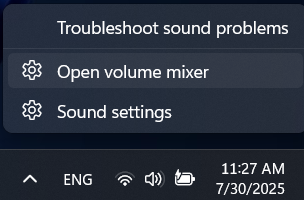
- Right-click on the speaker
- Open volume mixer
- Adjust the audio
- Use the Mac's built-in controls
- Or else, use an application such as MixPad, eqMac, or Boom3D (some may require purchasing).
Download Chat Transcript
Download Files/Resources
You will be able to find the files in the chat (uploaded by the host). Scroll up and find them in the chat history.
- Click the Settings button at the bottom toolbar (new room layout), or click the Gear button at the upper right (next to the chat option)
- Click on the Dark Mode toggle from the settings box.
View this guide to learn how to enable it
Use the carrot buttons to collapse or expand the sections. See this guide to learn how to
Use the carrot button in the upper right panel.

A1: It's simple! Use your login link. If the webinar was recorded by the host, you can view it. In some cases, even when you did not register for the event, you can watch the replay (you may need to register for it). The file is in MP4 format.
A2: If you are using a Webinar Room (as a registered user), please see this guide, as it is available in the Flow dashboard.
A: If the host enabled "On-demand" mode, you can register and view the replay.
Slides
Q: How do I obtain a copy of the presentation?
A: It is available to download in the webinar room if the host has enabled the option (see below). If it is not enabled, check the chat box to see if the host uploaded it there.

The slideshow download option appears at the bottom left of your screen during slideshows.
Screen Sharing
Q: How do I view in full screen?
A: Double click/tap in the middle or use the Full Screen button in the webinar room
Q: Can I take the screen moved out of the webinar room and place it somewhere else?
A: Yes, read the Picture in Picture guide here.
Polls
Q: How do I vote in a poll/survey
A: When there is a survey or a poll, you have to select the appropriate options from the survey that you see on the main window. Next, click Done to submit the votes.
Q: Can I see votes?
A: Only if a host shares it.
Q: A host requested to take a survey at the end of the webinar. I exited earlier. How do I take it?
A: It is available only when the host ends the event for all.
Q: I see a YouTube video but it does not play
A: With Web Content Block, you can view the YouTube videos if the host is sharing them with you. Be sure to click the Play button to view the video.
Whiteboard
Q: Unable to see the content - content misaligned
A: Ask the host to make them center. You also can move the content on your screen (or change the browser's Zoom level).
How do I Exit the Webinar (Leave)?
On the legacy room layout, click the X button on the upper right panel (see below).

On the new room layout, click the Leave button on the toolbar at the bottom.

Got any other questions?
Contact the technical support team by clicking the Live Chat bubble at the bottom right!