
Startup Guide - Recurring Events (Event Series/Funnels)
Setting up, Pre-record, and Automate Recurring Events

Tharinda Lasika
Last Update hace 5 meses
💡Tip
You must specify an end date when you create a recurring event. You can select either weekly or monthly recurrences.
Features at a Glance
- Recurring events with Weekly (daily or selected dates) and Monthly options
- Start and End dates
- Global options (Registration page, banners and ads, presenters, etc.)
- Even specific options such as local media for each event, separate logins, separate recordings, and reports
- On-demand replays
- Make it a course or a series with pre-recorded media and full automation (without a host, you can execute the series).
- Multiple event registration options.
Limitations
- The set of events you create follows the same configuration, such as the title, description, event image, and all the other options
- You can include the full description and series information in the description of any event in the set, for instance
- Modifying any event in the set affects all the events
However, the webinar room configurations are unique and they don't get mixed up - Once an event of the set ends, you can modify the next event if you want to change anything (it also applies to the set of events, not just individually). We are planning to make the set follow individual events in the next update.
- You must create an event 24 hours before the start of the first event in the set. You cannot set up a recurring event to occur right now or within today. Use a one-time event for quick, ad-hoc events.
Creating a Series

- Click the red circle with a '+' button at the upper right-hand corner
- Enter the event titles and description
- Select the "Recurring Type" to get the selection option for days
- Select the days you want the recurring event to occur
- Select the date and time
- You must select an end date
- Select the rest of the options and click Next
- Learn how to configure the next steps - same as configuring a onetime event (Click here).
Pre-recording Recurring Events with AutoFlow Technology
Step 1: Create one or more Pre-recordings
- Log in to the admin page and click on the Recurring Events tab
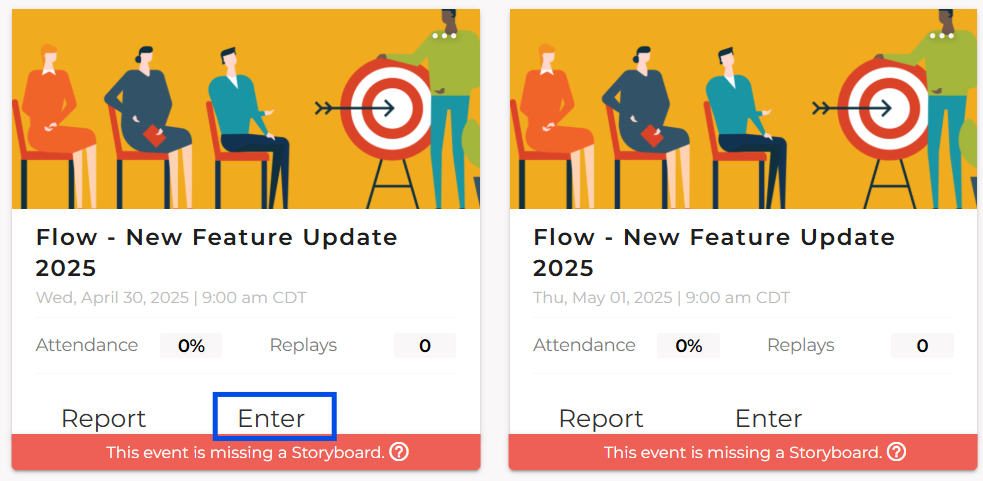
- Find the recurring event(s) that you want to pre-record and click the Enter button
When you join the webinar room, you can add any item you wish to use, for instance, a slideshow in this example.

- Add the storyboard item (slides for instance - upload it and then assign the segment to one/more users, enable other options
- Turn your audio and video devices on (mic/webcam) and laser for slides if necessary
- Click the pre-recording button Automate with Autoflow
- Click the start button (see below).

Step 2: Saving the Recording
If you want to record it from scratch, click Record new instead.

Step 3: Testing the AutoFlow

Upon successful recording the highlighted icon in this image appears on top of the segment
Once you complete the testing, End the Prep Mode.

Step 4 - Automate the Webinar (Optional)
- Find the event that you want to modify on the Flow Dashboard
- Click the Meatball menu at the upper right on the event card ("..." button)
- Click Edit from the dropdown menu
- Now, once you are in the event configuration mode, click on Settings
- Scroll down and click Advanced Options to expand the section
- Toggle Auto Start Event option.

Step 1 (Attendees) - Registering for Recurring Events

Pre-record and Automate Events with AutoFlow Technology
At this point we end the Creating Your First Event segment. Let's learn how to Add Content to it through Storyboard. Click here to learn more!
To receive quick help, initialize a chat at the bottom right, or schedule a demo (click here).