
Startup Guide - Issuing Certificates (Cert version 2.0)
Issue Certificates Following a Criteria

Tharinda Lasika
Last Update 5 months ago
- Use Templates
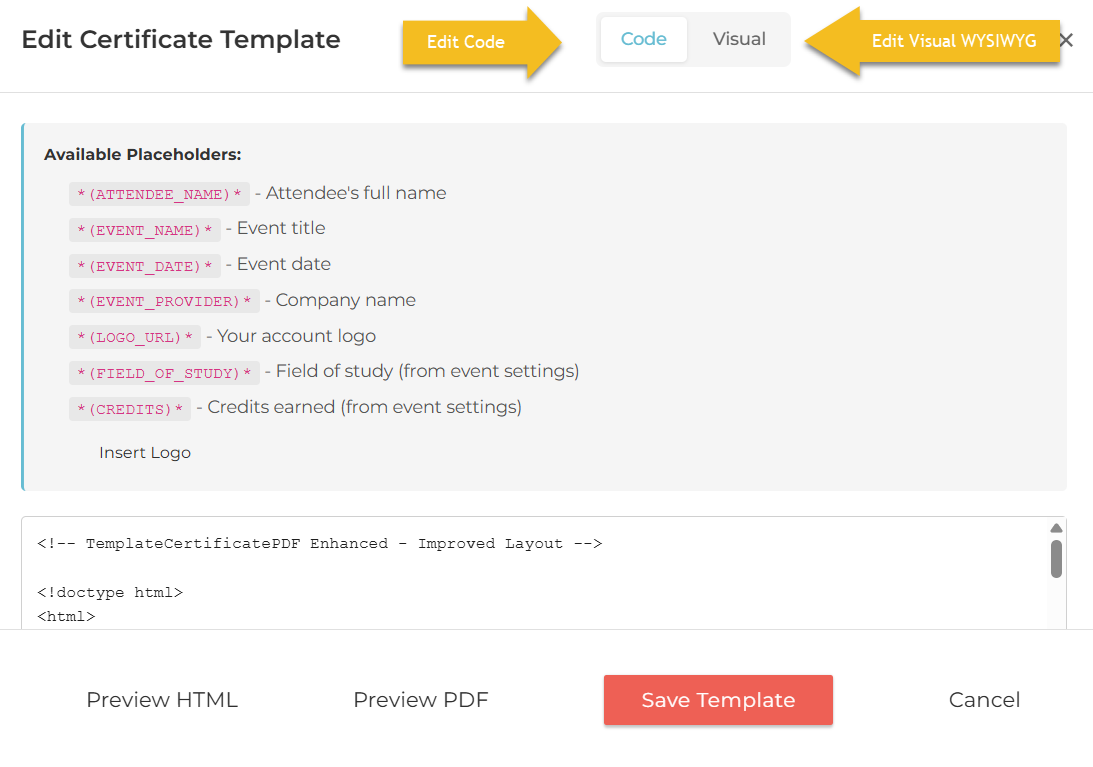
- Code (CSS/HTML) or edit the certificate visually, with placeholders
- Add images
- Use multiple parameters - criterion
- Attentiveness
- Popup clicks (attendance checking polls)
- Duration
- 1, 2, or all parameters together to create a complex criterion to issue certificates
- View reports (verification)
- Resend certificates manually.
Limitation: You cannot edit the email that we send with the certificate at this point. It is also not available for online viewing.
Getting Started
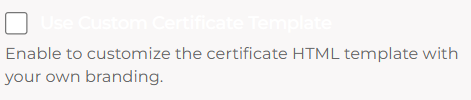
Step 1: Configure the Templates
Step 2: Edit the Template

You can use the WYSISYG editor or use HTML code to create the certificate. Use Codepen or an AI tool to pre-configure it and then import the code. Be sure to use the placeholders as in the sample template.
- You can use placeholders or type the sections (text) directly in the WYSIWYG editor.
- Change the code structure to change the design, and view it in the visual tab.
- Once it is created, preview the PDF file.
- Save the template when finished (it automatically saves your edits).
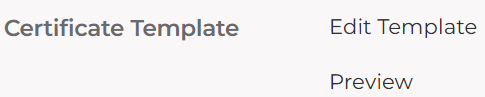
Template

Preview (Sample)

Step 3: Adding the Certificate to the Event
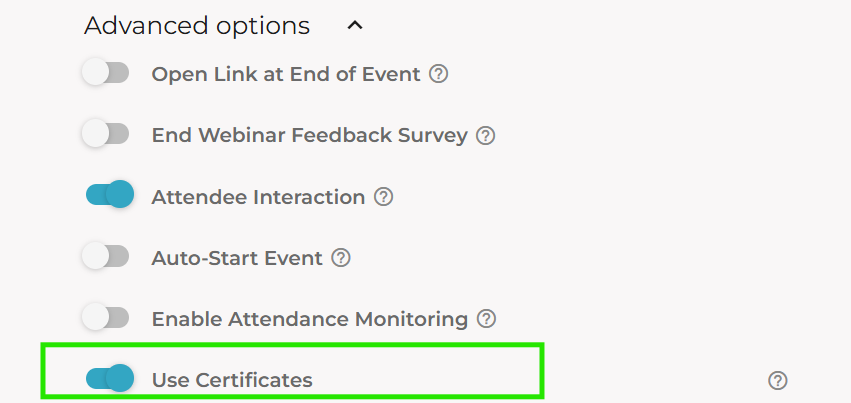
- Enable the certificate in the Settings > Advanced Options
- Then, turn on the Use Certificate option.
What Options are Available?

- Attendance Percentage: The time an attendee stays on the ACTIVE Browser Tab
- Duration: From 30 minutes to 8 hours
- Logo Position: Left/Center/Right
- Company Name Position: Same as above (you can use an image)
- Certificate Content
- Field of Study: The subject area of the event (i.e., Accounting)
- Credits: CPE/CPD credits offered (or any other credits)
- Survey Requirement
- Require Survey Completion: How many surveys are required to be completed, and what the maximum completion requirement is
- Require Survey Answer Accuracy: Survey answers according to the appearance of the surveys (indexed).
Final Preview (Example)

Step 4 (Optional): Combine Presence Polls (Check Attendee Presence with Presence Popups)
Using presence polls is a great way of assuring whether attendee was really watching the webinar. Once enabled, this pops up a dialog box periodically (configurable intervals) and once clicked, it is recorded. You can set a threshold as a qualifying point and let the Flow certificate system issue the certificate to only who meets the required number of popup clicks.
- Read the Presence Polling guide first
- Enable the option (Event Settings > Advanced Options > Enable Attendance Monitoring)
- Now you will see a new metric appearing under the certificate option (see below). Type the number of popups the attendee must click to quality (an example is added).

Gerald is planning to run an 8 hour education webinar (with 1 hour interval) and he wants to use the duration and presence polls to quality. Here are the steps:
- Enable Attendance Monitoring
- Set the intervals to 9 - 10 minutes
- Enable the Use Certificate option
- Turn off Attendee Percentage Requirement
- Turn on Duration Requirement
- Set Required Popup Clicks (see the calculation example below)
- Find the window where the attendees will be active: 8 - 1 hours = 7 hours (420 minutes)
- Divide it by 9-10 intervals (let's use 10): 420 / 10 = 42
- Polls per hour: 42 / 6 = 7
- Let's make it flexible by counting a poll every 15 minutes: 4 polls per hour, 28 polls per 7 hours
- Add 28 as the Required Popup Clicks.
Step 5: Reports and Issuing Manually (If not Sent)

- Go to Past Events tab
- Go to Report of a specific event from the event card (the event you intended to issue certificates)
- Scroll and locate the Participant Details
- Click Registrants and Attendees
- If the certificate has been sent or send it manually - press the Send button.
💡Pro Tip: Download the CSV report to identify if the user has met all the criteria.
Need Help with Creating the Certificate? Our Support Team can help! Chat with us (click the chat bubble at the bottom right).